Having a current address on file for all students and staff is an essential measure for keeping the SAIT community safe.
A message to review/update your address will appear periodically throughout the year when you log in to choose your courses or access your schedule. Follow the instructions below to complete the required action. Once you have correctly completed and acknowledged the action item, you will not be prompted about it in future logins.
It is recommended to use a computer browser, not your phone, to complete this.
Select View Action Items in the pop-up found in the top right corner of your screen.
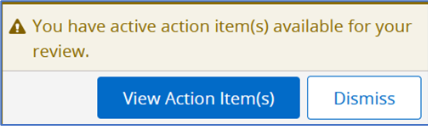
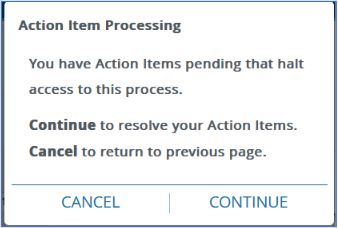
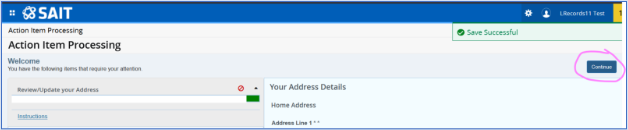
Depending on where you are within mySAIT, you may also see a message that looks like this. Select Continue.
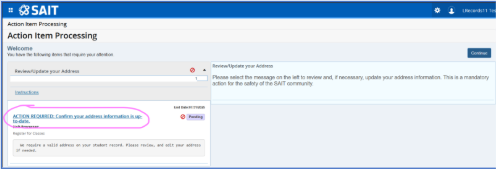
Choose the ACTION REQUIRED message on the left side of your screen to open the next steps.
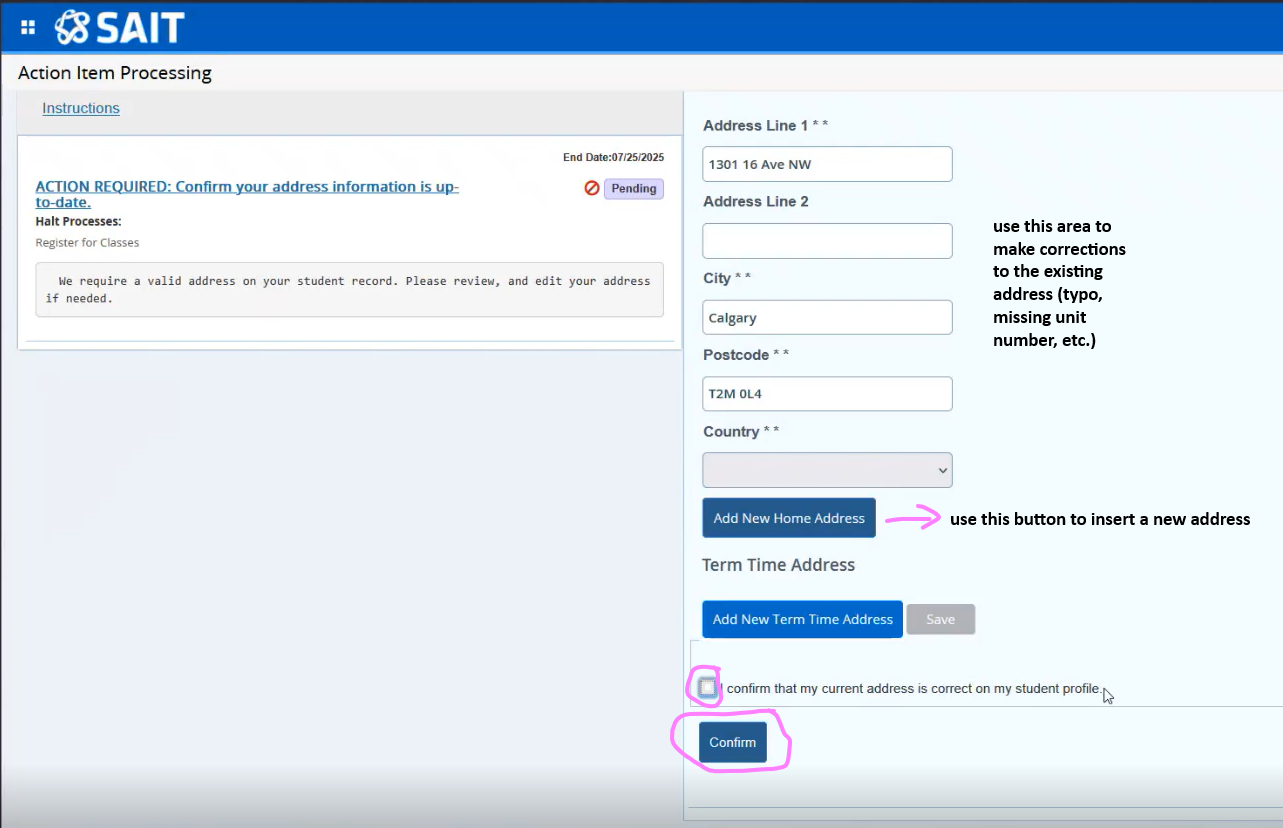
Review the current address information that we have on file for you. If updates are needed, please make the changes. Either way, whether you have made changes or not, you must select I confirm that my current address is correct on my student profile and select Confirm.
Choose Return or Continue to exit the completed action item (the name of this button changes depending on where you were in mySAIT when you accessed the action item).
Was this article helpful?
That’s Great!
Thank you for your feedback
Sorry! We couldn't be helpful
Thank you for your feedback
Feedback sent
We appreciate your effort and will try to fix the article