An unofficial transcript can be accessed through mySAIT by following the steps below.
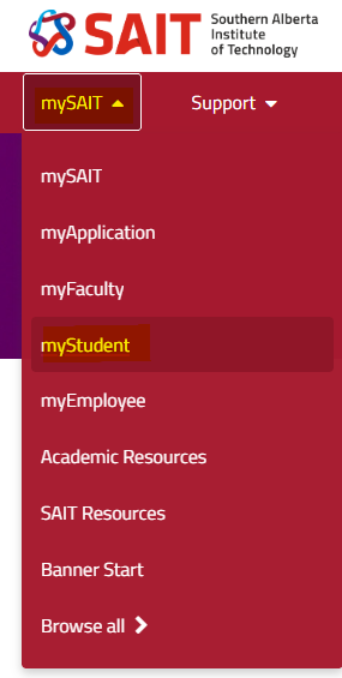
1.Log in to mySAIT and in the mySAIT tab select myStudent from the dropdown menu.
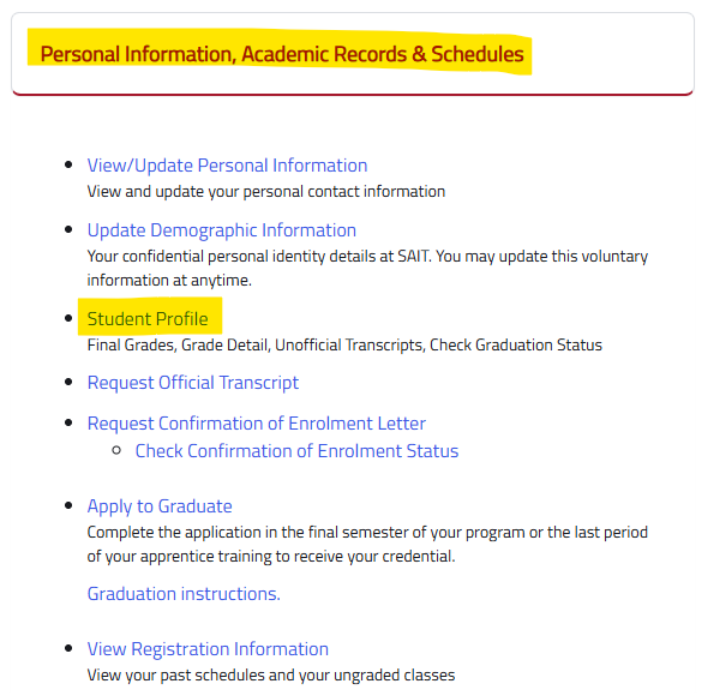
2.Under Personal Information, Academic Records & Schedules and choose Student Profile.
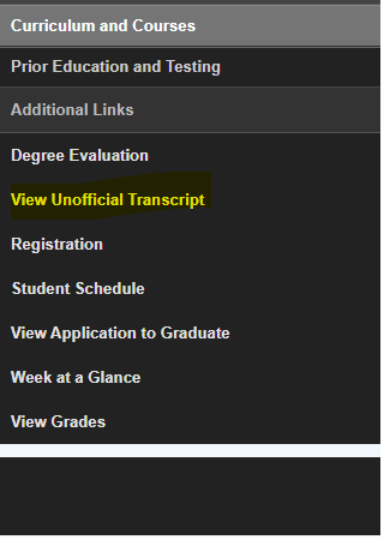
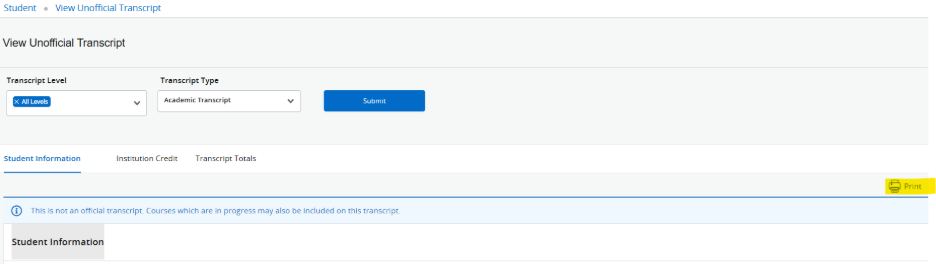
3.Select View Unofficial Transcript.
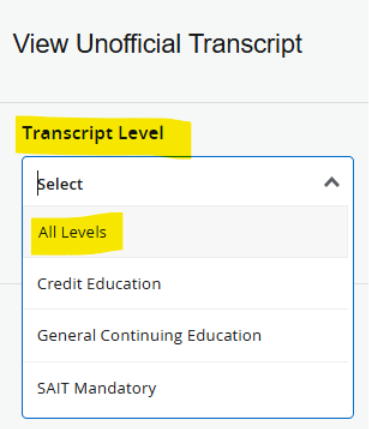
4.Select All Levels in Transcript Level dropdown
5.Select Academic Transcript in Transcript Type dropdown and submit.
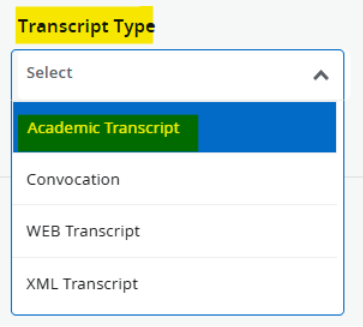
This will bring you to your unofficial transcript. You can save a PDF copy by choosing print from your browser options on a desktop or laptop computer — choose Save as PDF as the print destination. *Note: you will need to click CTRL+P in order for your name to appear on the PDF.
If you are using the Safari browser on a Mac, press the command and 'P' keys together. Look for the 'PDF' dropdown menu in the lower left hand corner and choose Save as PDF.
Review the helpful links below for information on your official transcripts.
Request an official SAIT Transcript
Access an official SAIT transcript through MyCreds
Check the status of your official SAIT transcript request
Download my official SAIT transcript in MyCreds
Was this article helpful?
That’s Great!
Thank you for your feedback
Sorry! We couldn't be helpful
Thank you for your feedback
Feedback sent
We appreciate your effort and will try to fix the article